
For cord-cutters and IPTV enthusiasts, the TiviMate IPTV Player is often hailed as the gold standard. Its sleek interface and cable-like experience make it a favorite among streaming users. However, new users often hit a roadblock when trying to upgrade to the Premium version. They discover they need a second, entirely different app to make it happen.
That app is TiviMate Companion.
If you are trying to unlock the full potential of TiviMate on a Firestick, Android TV box, or NVIDIA Shield, you cannot ignore the Companion app. It serves as the administrative heart of your subscription, handling payments, device management, and account settings.
This guide covers everything you need to know about TiviMate Companion from installation and setup to troubleshooting common issues ensuring you get the best possible experience from your IPTV setup.

What Is TiviMate Companion?
TiviMate Companion is a separate Android application designed specifically to handle the administrative side of the TiviMate IPTV Player.
It is crucial to understand the distinction between the two apps:
- TiviMate IPTV Player: This is the app you install on your TV or streaming stick to watch content. It’s the actual player interface.
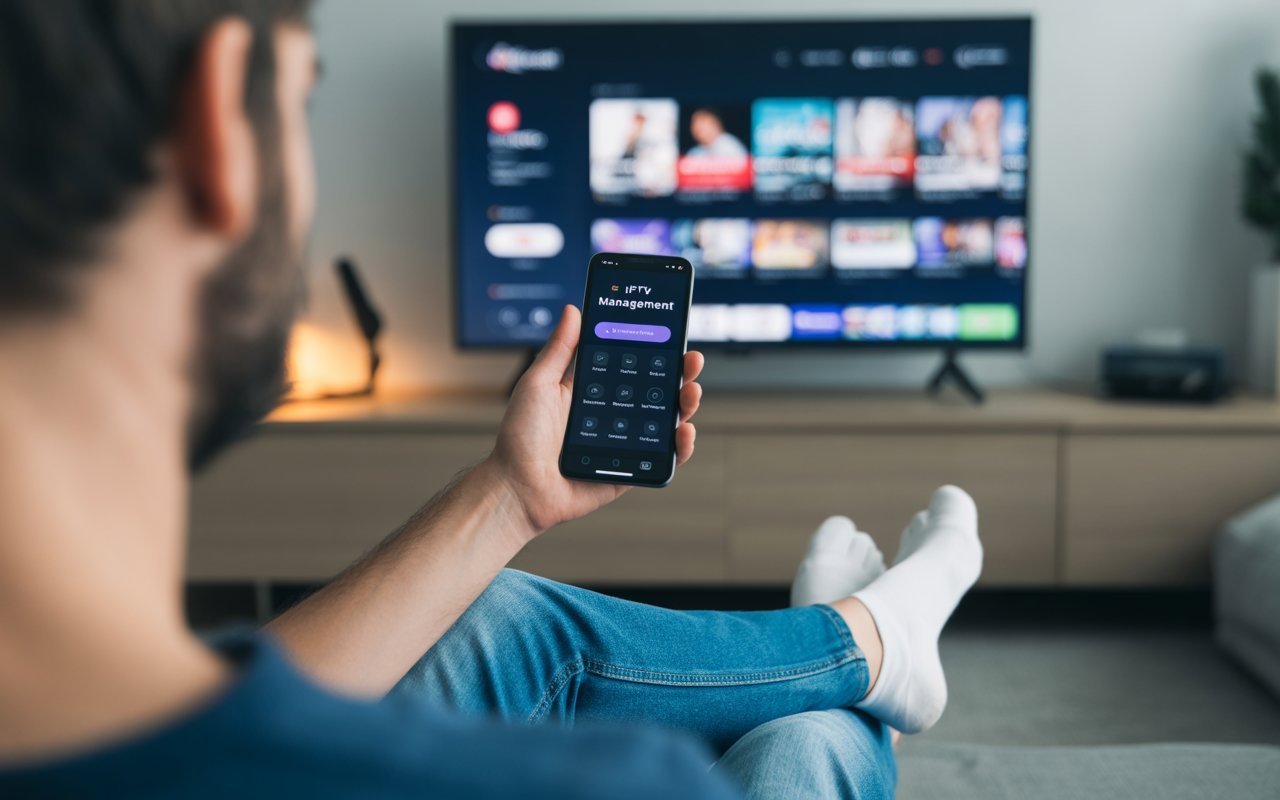
- TiviMate Companion: This is a management tool installed on a mobile device (phone or tablet) used to pay for the Premium subscription and manage connected devices.
Why Is It Required?
Many users ask, “Why can’t I just pay directly inside the TiviMate app on my TV?”
The answer lies in app store regulations. TiviMate is popular on devices like the Amazon Firestick, but the TiviMate app is not available on the Amazon App Store; it must be sideloaded. Because Google Play Store payment systems are not integrated into Amazon devices (and sideloaded apps generally can’t process Google Play payments directly), the developer created a workaround.
The Companion app acts as a bridge. It resides on the Google Play Store, allowing you to use Google’s secure payment processing to buy a subscription. Once purchased, that subscription is linked to your email, which you then use to unlock Premium features on your TV.
How TiviMate Companion Works
The ecosystem is surprisingly simple once you understand the workflow. The Companion app leverages the standard Google Play billing system. When you download it on an Android phone or tablet, you are essentially creating a TiviMate account.
Here is the basic operational flow:
- The Account Hub: You create an account within Companion using your email and password.
- The Payment Gateway: You purchase a subscription (Annual or Lifetime) through the app using your Google Play payment methods.
- The Key: Your email address becomes the “key.” When you go back to your TV and open the TiviMate Player, you enter that same email and password to unlock Premium features.
Without the Companion app, users on devices without the Google Play Store (like Fire TV Sticks) have no legitimate way to pay for the service.
Key Features of TiviMate Companion
While the interface is utilitarian, the features provided by TiviMate Companion are essential for power users.
Subscription Management
This is the primary function. Through the app, you can view your current subscription status. You can see when your annual plan expires or confirm that you have successfully upgraded to the Lifetime option. It allows you to cancel auto-renewal or change payment methods via Google Play.
Device Activation & Deactivation
TiviMate Premium typically allows up to five devices per account. The Companion app is where you manage these slots. If you buy a new TV and have already used all five slots, you can open the Companion app, see a list of all connected devices (e.g., “Bedroom TV,” “Living Room Shield”), and delete an old one to free up space for the new one.
Updating Account Info
Need to change your password? You handle that here. It is the central database for your login credentials.
Troubleshooting Message Logs
While rarely used by the average casual viewer, the app creates a log of actions which can be helpful if you are struggling to activate a device or if a payment fails to process.
How to Install TiviMate Companion
Installation is straightforward, provided you have the right hardware.
5.1 Requirements
To use TiviMate Companion easily, you need:
- An Android Mobile Device: A smartphone or tablet running Android.
- A Google Account: This is required to access the Play Store and process the payment.
Note: If you do not own an Android phone (e.g., you are an iPhone user), you will need to use an Android emulator on a PC, such as BlueStacks, to access the Google Play Store.
5.2 Step-by-Step Installation
- Open Google Play: On your Android device, launch the Google Play Store.
- Search: Type “TiviMate Companion” in the search bar. Be careful to look for the specific logo (usually a blue TV icon) and the developer name (Armobsoft FZE) to avoid copycats.
- Install: Tap the “Install” button and wait for the download to finish.
- Launch and Register: Open the app. You will be prompted to create an account. Use a valid email address that you have permanent access to, as this will be your login for all your TV devices.
How to Use TiviMate Companion
Once installed, the app is very intuitive. It doesn’t have a content library or settings for video playback because, again, it is strictly for account management.
6.1 Create or Manage Subscription
Upon logging in for the first time, you will see options to buy a subscription.
- Annual Subscription: A lower upfront cost that renews yearly.
- Lifetime Payment: A one-time higher fee that grants you permanent access to Premium features without recurring costs.
Select the one that fits your budget. The payment will process through your Google Play account credentials.
6.2 Add Devices
You don’t technically “add” devices inside the Companion app. Instead, you go to your TV, open TiviMate, click “Unlock Premium,” and enter the credentials you created in the Companion app. Once you do that, if you refresh the Companion app on your phone, you will see the new device listed there.
6.3 Remove Old Devices
This is a frequent task for long-time users.
- Open TiviMate Companion.
- Tap on the device list.
- Identify the device you no longer use (e.g., “Firestick 4K – Old”).
- Tap the trash icon or “Remove” button next to it.
- That slot is instantly freed up, allowing you to log in on a new device immediately.
TiviMate Companion vs. TiviMate Premium
It is common for newcomers to confuse “Premium” with “Companion.”
TiviMate Premium is the status of your account. It is the bundle of features you get inside the player, such as:
- Catch-up TV support.
- Multiple playlist management.
- Favorite channel management.
- Picture-in-Picture mode.
- Scheduled recording.
TiviMate Companion is simply the tool used to buy that status.
Think of it this way: You cannot use TiviMate Companion to watch TV. You generally cannot use TiviMate Premium features (on Firestick) without first using Companion to buy them. They work in tandem to deliver the complete experience.
Common TiviMate Companion Issues & How to Fix Them
Even the best apps have hiccups. Here are the most common issues users face and how to resolve them.
Login Not Working
If you cannot log in, first ensure you are not confusing your IPTV service credentials with your TiviMate credentials. They are different.
- Solution: Use the “Forgot Password” feature in the Companion app to reset your TiviMate account password. Ensure you are typing the email exactly as registered (it is case-sensitive in some older versions).
Payment Errors
“Order Registered” or generic payment failures can happen.
- Solution: This is usually a Google Play Store cache issue. Go to your phone’s Settings > Apps > Google Play Store > Storage and clear the cache. Restart the phone and try the payment again. Also, ensure your payment method on Google Play is valid and has funds.
Device Limit Reached
You try to log in on your TV and get an error saying the limit is reached.
- Solution: Open the Companion app on your phone. You likely have 5 devices listed already. You must delete one to add another.
Cannot Find App on Google Play
If the app doesn’t appear in search results, your device might be incompatible or you are in a region where it is restricted.
- Solution: Ensure you are on an Android mobile device, not an Android TV device. The Companion app is not meant for TVs. If you still can’t find it, check if your Android OS version is too old.
Is TiviMate Companion Safe and Legal?
Yes, TiviMate Companion is completely safe and legal.
Safety:
The app processes payments through Google’s secure billing infrastructure. You are not handing your credit card details directly to a random third-party developer; Google handles the transaction.
Legality:
The TiviMate app itself does not provide any content. It is just a media player, similar to VLC or Windows Media Player. Using the Companion app to unlock features for a media player is entirely legal. The legal “grey area” of IPTV usually concerns the subscriptions (playlists) users add to the player, not the player itself.
Warning: Always download the Companion app from the official Google Play Store. Avoid “Mod” or “Cracked” APKs found on third-party websites. These are often infected with malware and will not work for managing legitimate accounts.
TiviMate Companion Alternatives
Are there alternatives to using the Companion app?
If you are on a device that has the Google Play Store natively installed (like an NVIDIA Shield or a generic Android TV box), you technically do not need the Companion app. You can purchase the subscription directly through the TiviMate app on the TV screen.
However, if you are on a Firestick or a device without Google Play services, there is no real alternative. You must use the Companion app (or an emulator running it) to process the payment.
Regarding alternatives to the TiviMate player itself? Sure. Apps like OTT Navigator, XCIPTV, and Smarters Pro are popular. However, none of them use the TiviMate Companion app; they have their own payment structures.

Frequently Asked Questions (FAQ)
Why isn’t TiviMate Companion available on Firestick?
The Companion app is designed for touch-screen mobile devices to process Google Play payments. Firesticks run on Fire OS (Amazon) and do not support Google Play Services natively. Therefore, you cannot install Companion directly on the stick.
Can you use TiviMate Premium without Companion?
Only if you are using an Android TV device with the Google Play Store installed. If you use Firestick, you must use Companion (via a phone or BlueStacks) to set up the account initially.
How many devices are allowed?
A standard TiviMate Premium subscription covers up to 5 separate devices.
Can I use an iPhone to set this up?
There is no iOS version of TiviMate Companion. iPhone users must use a PC with an Android emulator (like BlueStacks or Nox) to access the Google Play Store, download the app, and create their account.
Unlock the Full Potential of Your TV
While the extra step of downloading a second app might seem inconvenient at first, TiviMate Companion is a necessary tool for those who want the premium IPTV experience on devices like the Firestick. It ensures your payments are secure, allows you to manage your devices easily, and unlocks the robust features that make TiviMate the market leader in IPTV players.
By setting up TiviMate Companion correctly, you aren’t just buying an app; you are investing in a seamless, cable-like viewing experience that puts you in total control of your entertainment.